We are excited to share the Release Notes for 26R2.3. The new capabilities delivered include:
Compass Patient
Improve Search Results with Exact Match Searching
Exact Match Searching allows users to streamline their searches in Compass Patient by returning only results that strictly match entered terms. To perform an exact match search, click the dropdown in the Search Bar and select Exact Match. You will see a second dropdown with a list of criteria; select as many criteria as you like, enter your search terms, and perform the search by clicking Go or pressing your Enter key.
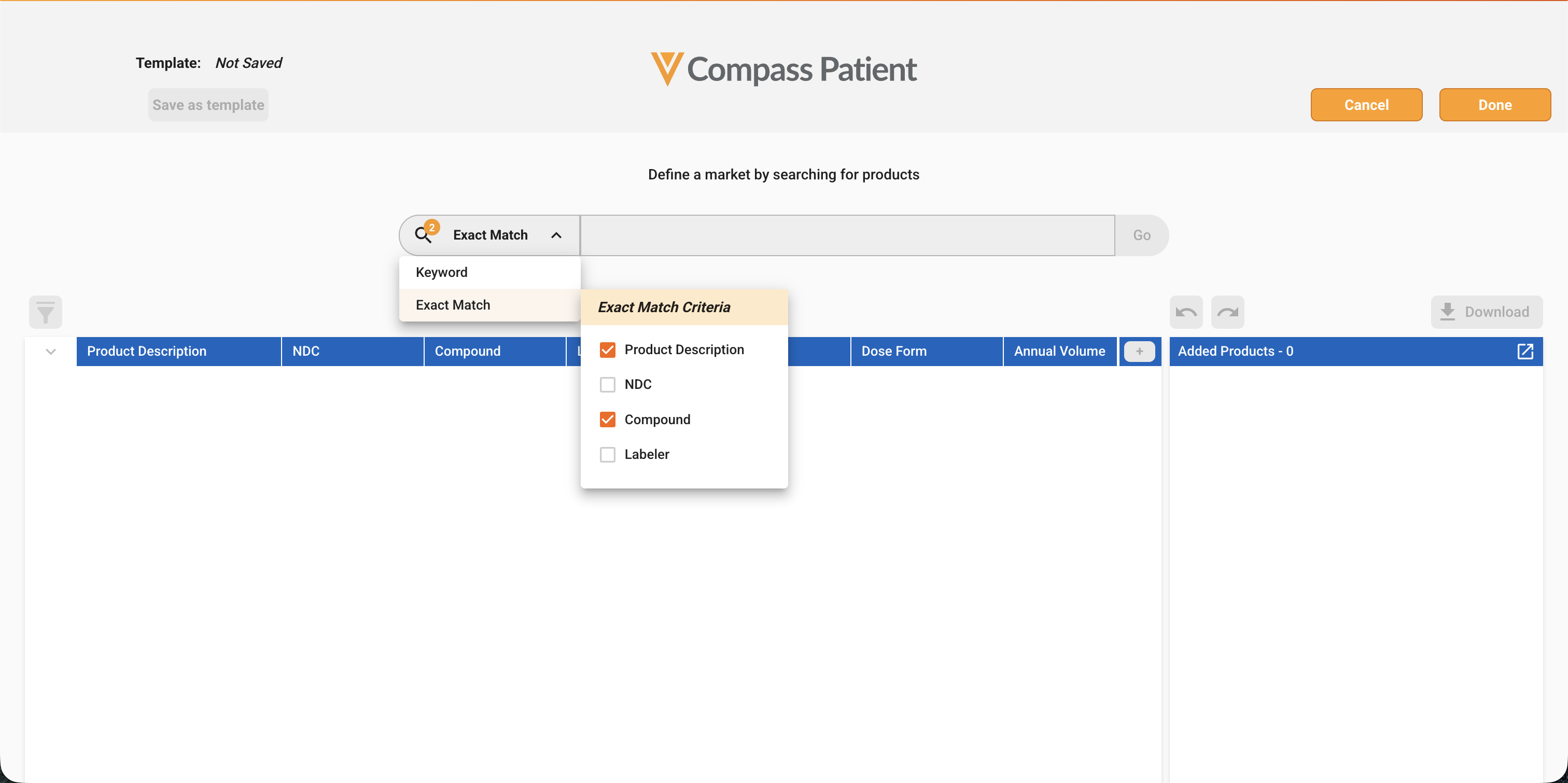
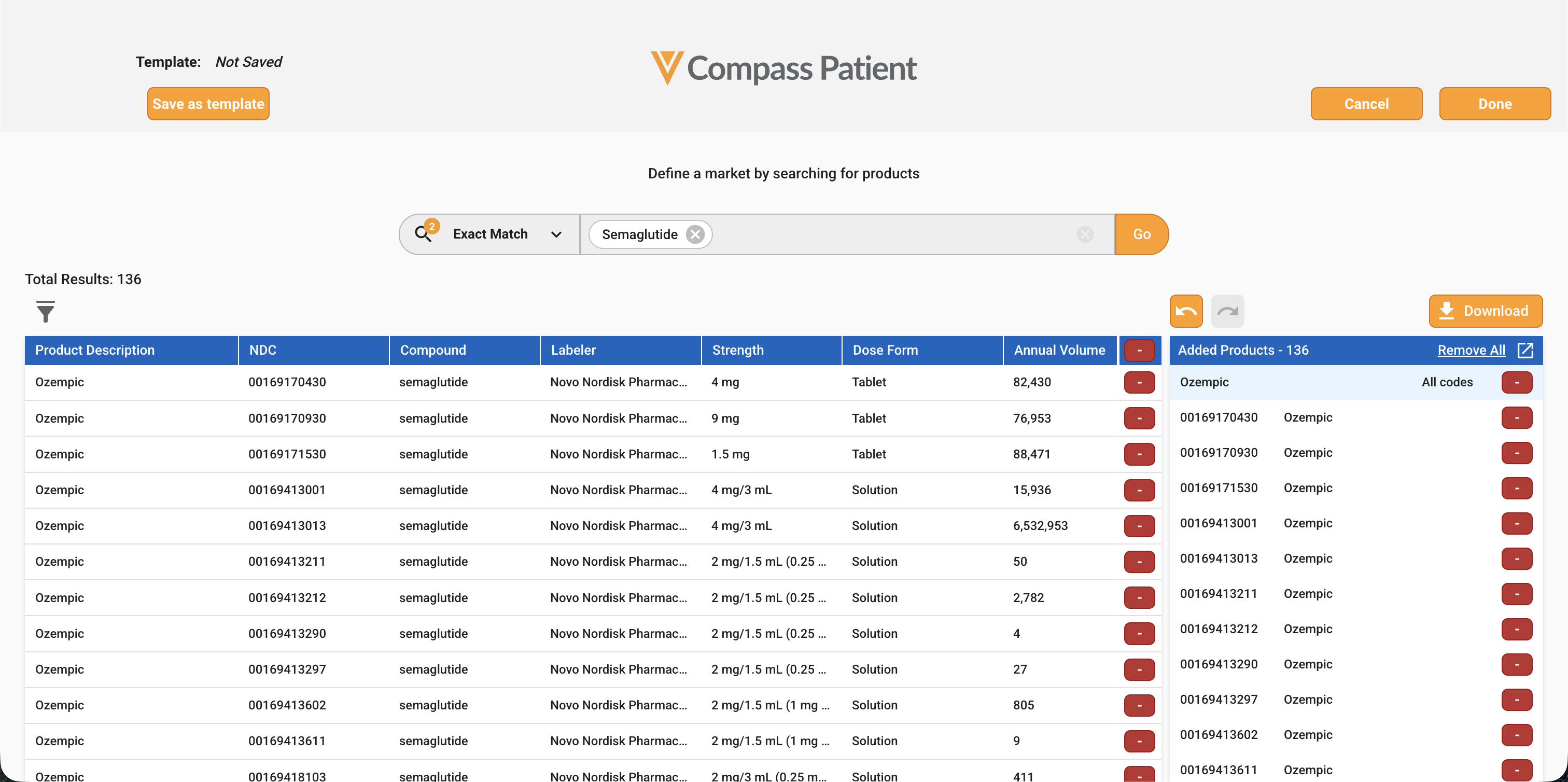
Exact Match Searches will only return results that match at least one of the specified criteria, eliminating partial matches, especially helpful when searching long lists of codes. Search results are not grouped by their parent-brand, and are displayed in alphabetical A-Z order based on product description. If two or more results share the same product description, results are then sorted by their NDC.
Improved Visibility on Search Terms with No Results
Users can now more quickly identify and address their search terms that are incorrect and have no results. When performing either search type - Keyword or Exact Match - search terms that yield no results are highlighted in red and automatically brought to the user’s focus at the front of the search bar.
Users can either delete the search term or modify the term directly in the search bar and re-run the search.
Improved Brand-Level Add All Functionality
Within the Product Searcher, the Brand-Level Add All Button will respect any of the user’s Filter selections and add only displayed codes in the Search Results. This allows more targeted bulk additions, especially valuable when a user is interested in a subset of a brand, such as specific product types, dose forms or indicated Disease Areas.