On This Page
Delivery Locations
Veeva Compass offers a variety of different delivery options to help users download and pull data files in a way that best suits the user’s needs and technical capabilities. The following file formats and delivery locations are available for each subproduct:
| Subproduct | Available File Formats | Available Delivery Locations |
|---|---|---|
| Patient | CSV, Parquet, Excel | SFTP, Amazon S3, Microsoft Azure, Portal Download, Veeva Nitro, Veeva CRM |
| Pathway | CSV, Parquet, Excel | SFTP, Amazon S3, Microsoft Azure, Portal Download, Veeva Nitro |
| Prescriber | CSV, Parquet, Excel | SFTP, Amazon S3, Microsoft Azure, Portal Download, Veeva Nitro, Veeva CRM |
| Zip | CSV, Parquet, Excel | SFTP, Amazon S3, Microsoft Azure, Portal Download, Veeva Nitro, Veeva CRM |
| National | CSV, Parquet, Excel | SFTP, Amazon S3, Microsoft Azure, Portal Download, Veeva Nitro |
| State | CSV, Parquet, Excel | SFTP, Amazon S3, Microsoft Azure, Portal Download, Veeva Nitro |
| Genomics | CSV, Parquet | SFTP, Amazon S3, Veeva Nitro |
| Lab Results | CSV, Parquet | SFTP, Amazon S3, Veeva Nitro |
| Specialty Pharmacy | CSV, Parquet | SFTP, Amazon S3, Veeva Nitro |
SFTP
Available for all Compass data pulls. Also available for Data Connector deliveries.
One delivery method offered by Veeva Compass is to a Veeva-hosted SFTP server. This allows users to easily access their data in a reliable, secure manner through the many SFTP clients available for free. The SFTP server also contains a predictable folder naming convention which helps aid users in automating loading processes.
Note The Veeva Compass Portal and other delivery destinations are tools for data delivery and data access to Veeva Compass data for use during a customer’s subscription to Veeva Compass. They are not intended for use as long-term data storage and are subject to Veeva’s retention policy for data delivery tools.
Accessing Compass SFTP
Credentials
To access Veeva’s SFTP server, a user must have an active portal account as this provides the username and password needed to log in.
- Host: sftp://transfer.veevacompass.com
- Username / Password: Your Veeva Compass Portal credentials
- Port: 22
Connecting for Local Access
In order to access the SFTP server, a user can use a FTP client installed such as FileZilla or Cyberduck to access the data. Once installed, use the portal credentials to log in to the server.
If the user is encountering issues with timeout when logging into the server, we recommend updating the connection timeout setting to 60 seconds. This can be found under the connection settings for the FTP client.

Once logged in, the user will be able to navigate the FTP server and view/download the files for completed jobs they have access to.
Remote Host Access
For automated ingestion we recommend connecting to SFTP via command line/python/java libraries.
We do not recommend building ingest pipelines using FTP clients such as Filezilla or Cyberduck.
Note If users are having issues accessing the Portal or SFTP Directory, the locations may need to be added to your company’s VPN allowable sites list.
Finding a Specific Compass Job
To locate data for a specific Job, first look up the Job information in the Portal, then go to SFTP to locate that Job’s information.
Key Job Information includes:
| Attribute | Description |
|---|---|
| Instance Name | Instance name is the company name |
| License ID | Up to 3-digit numeric identifier that indicates the unique License ID that was used for the job. There can be multiple License IDs under a single Instance Name. |
| Query ID | Up to 6-digit numeric identifier that indicates the unique query ID that was used for the job. There can be multiple Query IDs under a single License ID. |
| Query Name | Description or alias of the query that was used to produce the job. |
| Job ID | Up to 8-digit numeric identifier that indicates a unique job number given to the data request. There can be multiple Job IDs under a single Query ID. |
Locate Job Information in the Portal
Use the Job Receipt in the Portal to find directory information on the specific job.
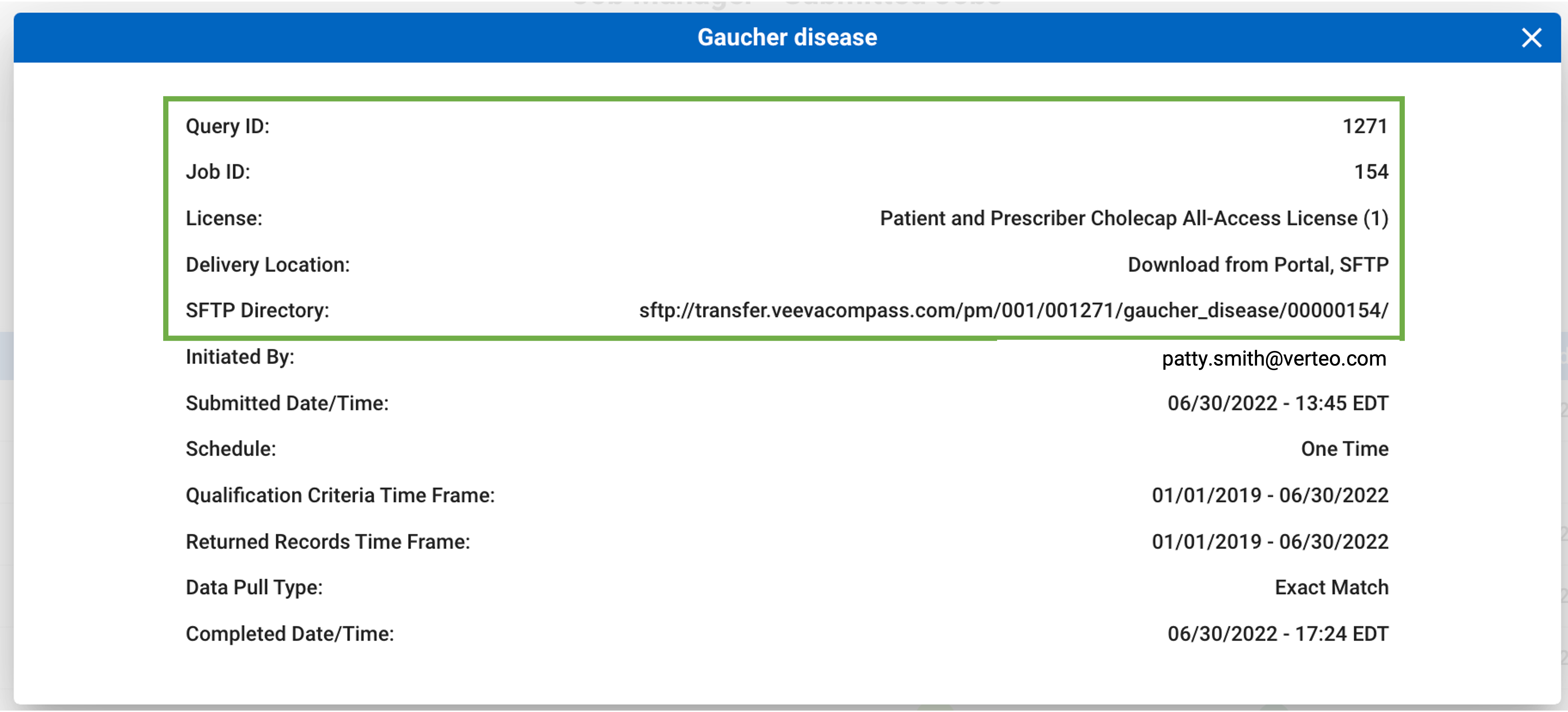
The delivery location and directory can be found in the job receipt in the Job Manager tab.
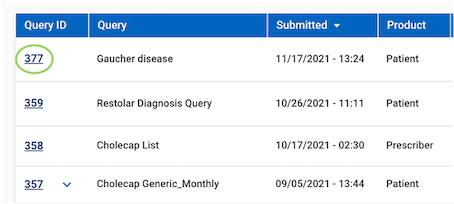
- Click the Query ID for the Job you would like to locate
- A pop-up will indicate key details regarding the job. This will provide you with the specific SFTP directory path, which includes the Instance ID, License ID, Query ID, Query Name and Job ID.
Locate Job Information in the SFTP Directory
SFTP folders will follow the standard naming convention: [Instance Name] / [License ID] / [Query ID] / [Query Name] / [Job ID]
For example, a path will look like: company_abc/002/000123/my_query/00000001
Locate the directory based on the information provided in the Job Receipt in the Portal.
Veeva CRM
Available for Patient, Prescriber, and Zip data pulls.
Veeva CRM allows users to deliver Veeva Compass data directly to the field team, through powerful MyInsights content that is updated and easily accessible by field teams.
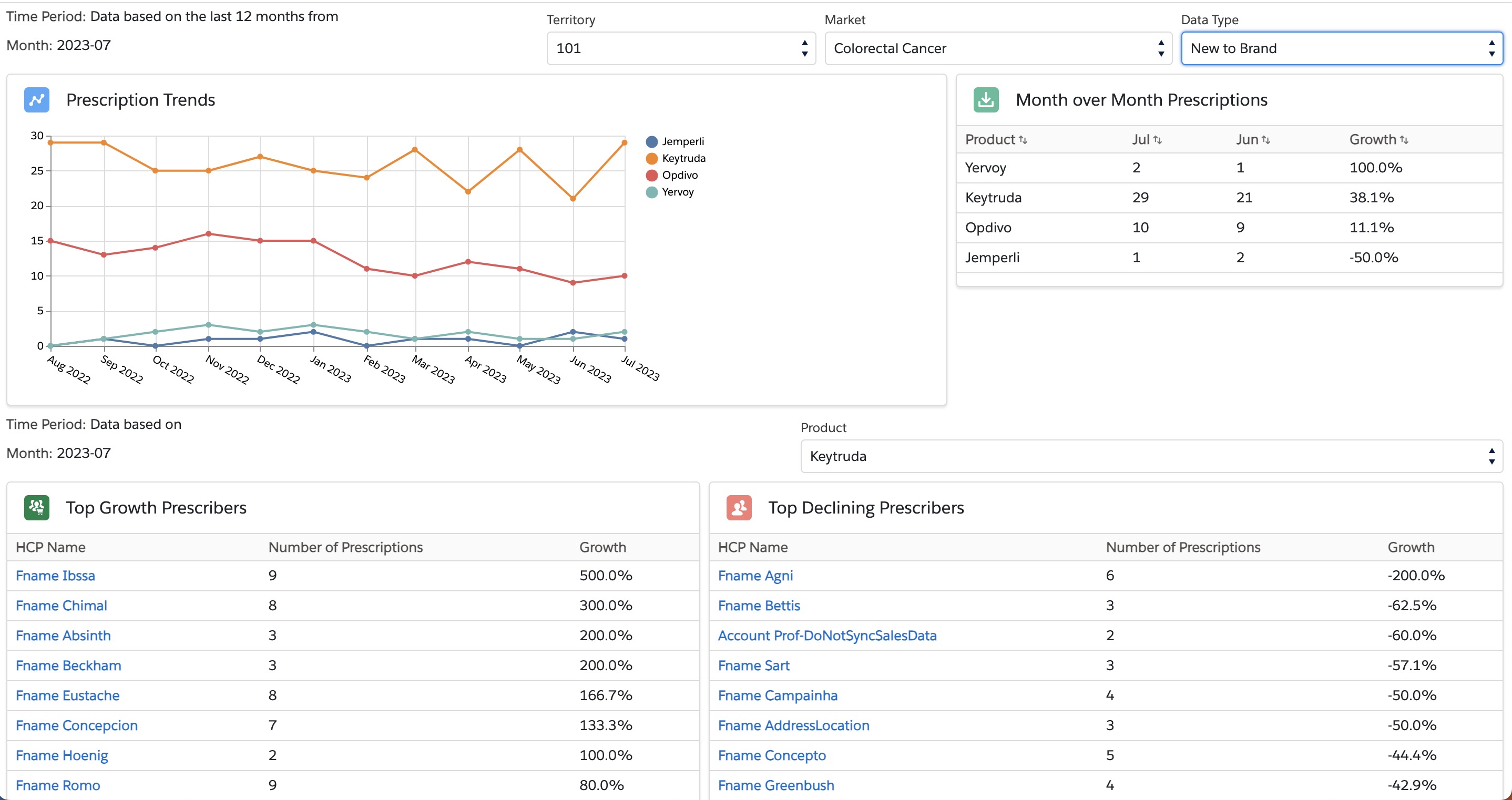
The CRM option is available for users with an active CRM MyInsights subscription. Note that CRM is only available for Patient daily data queries and Prescriber/Zip monthly data queries. Currently, one active daily Patient query, one active monthly Prescriber query, and one active monthly Zip query can be sent to CRM MyInsights per customer. For more information on setting up the Compass CRM integration, refer to the CRM Help Site and reach out to your Compass Product Expert.
Vault CRM
Available for Patient, Prescriber, and Zip data pulls.
The Vault CRM option is available for users with an active Vault CRM and XPages subscription. Note that CRM is only available for Patient daily data queries and Prescriber/Zip monthly data queries. Currently, one active daily Patient query, one active monthly Prescriber query, and one active monthly Zip query can be sent to CRM X Pages per customer. For more information on setting up the Compass CRM integration, refer to the CRM Help Site to configure your reports and reach out to your Compass Product Expert to enable the delivery destination.
Note: Vault CRM XPages is continuing to support a broader set of use cases. Please reach out to your Product Expert to confirm availability for your use case.
Veeva Nitro
Available for all Compass data pulls. Also available for Data Connector deliveries.
Veeva Nitro is a data science and analytics platform that seamlessly integrates with Veeva Compass. Nitro provides faster access to your data, so you have your data ready for querying, visualizing and reporting.
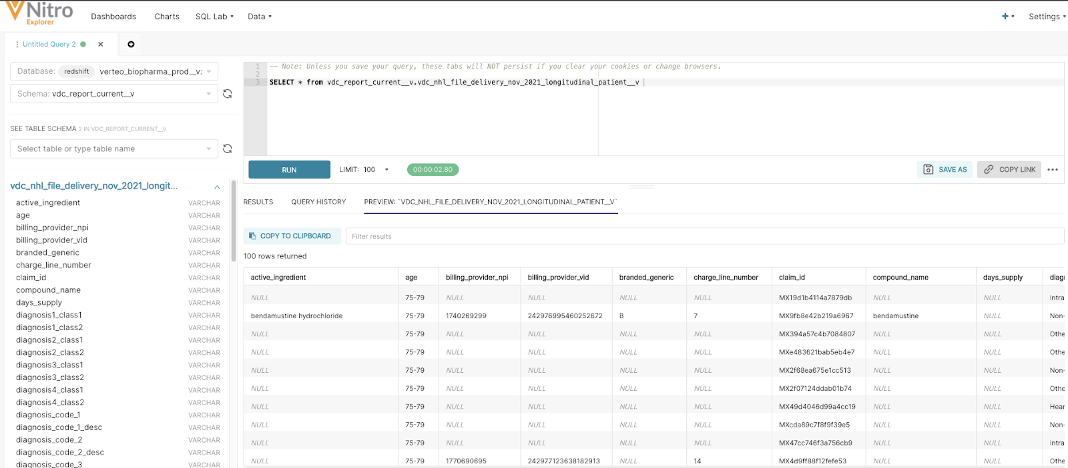
The Veeva Nitro option is available for users with an active Nitro subscription. The Nitro option will be able to be selected in the Delivery Options step for users with an active subscription, and greyed out if no subscription exists.
Amazon S3
Available for all Compass data pulls. Also available for Data Connector deliveries.
Compass allows you to directly deliver your data files to an Amazon S3 bucket. The Amazon S3 option is only available for users with a pre-configured Amazon S3 bucket. Refer to Setting up an Amazon S3 Bucket for more information on S3 bucket setup.
Microsoft Azure
Available for all Compass data pulls.
Compass allows you to deliver your data files to Microsoft Azure. The Azure option is only available for users with a pre-configured Azure container. Refer to Setting up a Microsoft Azure container for more information on Azure container setup.
Portal Download
Available for all Compass data pulls.
For Patient or Pathway Data pulls, in order to help business users more quickly and easily access data, an Excel file will be automatically created and made available in Portal for all one-time and monthly jobs with fewer than 800k records. When an Excel file is available for a delivery, the user will be notified via email upon job completion. This Excel file will be provided in addition to the CSV file in your choice of destination. Excel Delivery applies to both one-time pulls and monthly scheduled jobs. Note that this file will not be generated for daily or weekly jobs.
For Prescriber, Zip, State, and National jobs, the Excel file will be available if the option was selected as a Delivery Option when submitting the job.
Once your job has completed processing, you can download the data file directly from the Portal by clicking Download Data from the Actions menu in the Job Manager. The data file will download directly to your computer and be available in your downloads folder.
Files in the Delivery
Compass data deliveries contain two components, the Data Files and the associated Supporting Files which help to either A: provide information to assist with data ingest, or B: better understand the data.
Data Files contain the result data for the query, and can be delivered in CSV, Parquet, and Excel formats. CSV and Parquet formats will be delivered to all selected delivery locations except the Compass Explorer. Excel files can be downloaded through the Compass Explorer Job Manager.
The following Supporting Files are provided with all deliveries:
- Header
- Manifest
- Record Count
- Compass Patient & Pathway - Query Receipt or Job Counts
- Compass Prescriber & National - Query Receipt
- Data Dictionary
Data Files - CSV
Data files include the Compass data that was requested in the query. The CSV file format is delivered in a pipe-delimited file.
If the dataset file size is smaller than 5GB, the data will be delivered as a single file.
If the dataset file size is larger than 5GB, the data will be delivered as multiple files, unzipped. Files are automatically split and provided by Compass with a max size of 5 GB. This size limits the risk of file downloads failing from SFTP. Files are unzipped for SFTP and gzipped for Amazon S3. Headers (attribute name) are present in each file.
Below are the contents and file naming conventions for each subproduct:
| Compass Subproduct | Contents | File Naming Convention |
|---|---|---|
| Patient | Patient level prescription and medical claims | PA_YYYYMMDDhhmmss_[Instance ID]_[License ID]_[Query ID]_[Job ID]_[Data File Number].csv |
| Pathway | Record stage level prescription and medical claims | PW_YYYYMMDDhhmmss_[Instance ID]_[License ID]_[Query ID]_[Job ID]_[Data File Number].csv |
| Prescriber | Prescriber (HCP and HCO) level projected data | PR_YYYYMMDDhhmmss_[Instance ID]_[License ID]_[Query ID]_[Job ID]_[Data File Number].csv |
| Zip | Zip level projected data | ZI_YYYYMMDDhhmmss_[Instance ID]_[License ID]_[Query ID]_[Job ID]_[Data File Number].csv |
| National | National level projected data | NA_YYYYMMDDhhmmss_[Instance ID]_[License ID]_[Query ID]_[Job ID]_[Data File Number].csv |
| State | State level projected data | ST_YYYYMMDDhhmmss_[Instance ID]_[License ID]_[Query ID]_[Job ID]_[Data File Number].csv |
| Genomics | Data Connector genomics results | GN_YYYYMMDDhhmmss_[Instance ID]_[License ID]_[Query ID]_[Job ID]_[Data File Number].csv |
| Lab Results | Data Connector laboratory test results | LR_YYYYMMDDhhmmss_[Instance ID]_[License ID]_[Query ID]_[Job ID]_[Data File Number].csv |
| Specialty Pharmacy | Data Connector specialty pharmacy claims | SP_YYYYMMDDhhmmss_[Instance ID]_[License ID]_[Query ID]_[Job ID]_[Data File Number].csv |
Data Files - Parquet
Data files include the Compass data that was requested in the query (e.g. claims data).
If the dataset file size is smaller than 500MB, the data will be delivered as a single file.
If the dataset file size is larger than 500MB, it will be delivered as multiple files, unzipped. Files are compressed for SFTP and Amazon S3 with snappy. Headers (attribute name) will be present in each file.
Below are the contents and file naming conventions for each subproduct:
| Compass Subproduct | Contents | File Naming Convention |
|---|---|---|
| Patient | Patient level prescription and medical claims | PA_YYYYMMDDhhmmss_[Instance ID]_[License ID]_[Query ID]_[Job ID]_[Data File Number].snappy.parquet |
| Pathway | Record stage level prescription and medical claims | PW_YYYYMMDDhhmmss_[Instance ID]_[License ID]_[Query ID]_[Job ID]_[Data File Number].snappy.parquet |
| Prescriber | Prescriber (HCP and HCO) level projected data | PR_YYYYMMDDhhmmss_[Instance ID]_[License ID]_[Query ID]_[Job ID]_[Data File Number].snappy.parquet |
| Zip | Zip level projected data | ZI_YYYYMMDDhhmmss_[Instance ID]_[License ID]_[Query ID]_[Job ID]_[Data File Number].snappy.parquet |
| National | National level projected data | NA_YYYYMMDDhhmmss_[Instance ID]_[License ID]_[Query ID]_[Job ID]_[Data File Number].snappy.parquet |
| State | State level projected data | ST_YYYYMMDDhhmmss_[Instance ID]_[License ID]_[Query ID]_[Job ID]_[Data File Number].snappy.parquet |
| Genomics | Data Connector genomics results | GN_YYYYMMDDhhmmss_[Instance ID]_[License ID]_[Query ID]_[Job ID]_[Data File Number].snappy.parquet |
| Lab Results | Data Connector laboratory test results | LR_YYYYMMDDhhmmss_[Instance ID]_[License ID]_[Query ID]_[Job ID]_[Data File Number].snappy.parquet |
| Specialty Pharmacy | Data Connector specialty pharmacy claims | SP_YYYYMMDDhhmmss_[Instance ID]_[License ID]_[Query ID]_[Job ID]_[Data File Number].snappy.parquet |
Data Files - Excel
Available for all Compass data pulls.
For Patient or Pathway data pulls, in order to help business users more quickly and easily access data, an Excel file will be automatically created and made available in Portal for all one-time and monthly jobs with fewer than 800k records. When an Excel file is available for a delivery, the user will be notified via email upon job completion. This Excel file will be provided in addition to the CSV file in your choice of destination. Excel Delivery applies to both one-time pulls and monthly scheduled jobs. Note that this file will not be generated for daily or weekly jobs.
For Prescriber, Zip, State, and National jobs, the Excel file will be available if the option was selected as a Delivery Option when submitting the job. Note that each tab within the Prescriber, Zip, State and National Excel files will be truncated at 600K rows.
Below are the file naming conventions for each subproduct:
| Subproduct | File Naming Convention |
|---|---|
| Patient | PA_[Query Name]_[Job ID]_YYYYMMDD.xlsx |
| Pathway | PW_[Query Name]_[Job ID]_YYYYMMDD.xlsx |
| Prescriber | PR_[Query Name]_[Job ID]_YYYYMMDD.xlsx |
| Zip | ZI_[Query Name]_[Job ID]_YYYYMMDD.xlsx |
| National | NA_[Query Name]_[Job ID]_YYYYMMDD.xlsx |
| State | ST_[Query Name]_[Job ID]_YYYYMMDD.xlsx |
Header File
This is a CSV file containing a list of all columns used for the data deliverable.
Below are the file naming conventions for each subproduct:
| Subproduct | File Naming Convention |
|---|---|
| Patient | PA_YYYYMMDDhhmmss_[Instance ID]_[License ID]_[Query ID]_[Job ID]_header.csv |
| Pathway | PW_YYYYMMDDhhmmss_[Instance ID]_[License ID]_[Query ID]_[Job ID]_header.csv |
| Prescriber | PR_YYYYMMDDhhmmss_[Instance ID]_[License ID]_[Query ID]_[Job ID]_header.csv |
| Zip | ZI_YYYYMMDDhhmmss_[Instance ID]_[License ID]_[Query ID]_[Job ID]_header.csv |
| National | NA_YYYYMMDDhhmmss_[Instance ID]_[License ID]_[Query ID]_[Job ID]_header.csv |
| State | ST_YYYYMMDDhhmmss_[Instance ID]_[License ID]_[Query ID]_[Job ID]_header.csv |
| Genomics | GN_YYYYMMDDhhmmss_[Instance ID]_[License ID]_[Query ID]_[Job ID]_header.csv |
| Lab Results | LR_YYYYMMDDhhmmss_[Instance ID]_[License ID]_[Query ID]_[Job ID]_header.csv |
| Specialty Pharmacy | SP_YYYYMMDDhhmmss_[Instance ID]_[License ID]_[Query ID]_[Job ID]_header.csv |
Manifest File
This is a JSON file containing a list of parameters describing the file properties (delimiters, naming convention, format), as well as query and job information.
The manifest file consists of the following fields:
File Properties
- format = The format of the file, ie. CSV, Parquet
- separator = The field separator in the file
- quotechar = The character that will surround strings
- escapeChar = The character used to identify a special character in the field
- terminator = The end of line character
- nullstring = The value printed out if the field is null
- encoding = The character encoding of the file
- compression = The compression applied to the file
- manifestVersion = The version of the manifest file
- header = The header file name
- pattern = The file naming convention pattern for data sets created
- count = Number of data sets created (not record count)
Query Information
- id = The unique ID assigned to the Compass query created. This ID can also be found in Job Manager
- name = The query name
- schedule = The schedule of the query, i.e. ONE-TIME, DAILY, WEEKLY, MONTHLY
- jobType = Indicates whether the job has a full refresh, or if it is using the standard scheduled dates. Possible values are STANDARD, FULL_REFRESH
- extractTimeRange = The extract time range encompassed, i.e. FIXED_DATES, THREE_MONTHS, THIRTEEN_WEEKS, NINETY_DAYS, TWENTY_SIX_WEEKS, ONE_YEAR, ROLLING
- extractStartDate = The start date of the exported data result
- extractEndDate = The end date of the exported data result
Job Information
- id = Up to 8-digit numeric identifier that indicates a unique job number given to the data request. There can be multiple Job IDs under a single Query ID
- product = The Compass product that the job was submitted for (e.g. PATIENT, PATHWAY, PRESCRIBER, NATIONAL, DATA_CONNECTOR)
- subProduct = The Compass sub-product that the job was submitted for (e.g. CLAIMS, CLAIMS_LIFECYCLE, PRESCRIBER, ZIP, NATIONAL, STATE, GENOMICS, LAB_RESULTS, SPEICIALTY_PHARMACY)
- licenseId = Up to 3-digit numeric identifier that indicates the unique License ID that was used for the job
- licenseName = The name of the license used for the job
- jobType = Indicates whether the job has an override on its submitted dates (e.g. STANDARD, FULL_REFRESH)
- jobRerun = Indicates whether the job was run off schedule (e.g. true, false)
- schemaVersion = The version of the schema (e.g. patient_schema_v3)
Below are the file naming conventions for each subproduct:
| Subproduct | File Naming Convention |
|---|---|
| Patient | PA_YYYYMMDDhhmmss_[Instance ID]_[License ID]_[Query ID]_[Job ID]_manifest.json |
| Pathway | PW_YYYYMMDDhhmmss_[Instance ID]_[License ID]_[Query ID]_[Job ID]_manifest.json |
| Prescriber | PR_YYYYMMDDhhmmss_[Instance ID]_[License ID]_[Query ID]_[Job ID]_manifest.json |
| Zip | ZI_YYYYMMDDhhmmss_[Instance ID]_[License ID]_[Query ID]_[Job ID]_manifest.json |
| National | NA_YYYYMMDDhhmmss_[Instance ID]_[License ID]_[Query ID]_[Job ID]_manifest.json |
| State | ST_YYYYMMDDhhmmss_[Instance ID]_[License ID]_[Query ID]_[Job ID]_manifest.json |
| Genomics | GN_YYYYMMDDhhmmss_[Instance ID]_[License ID]_[Query ID]_[Job ID]_manifest.json |
| Lab Results | LR_YYYYMMDDhhmmss_[Instance ID]_[License ID]_[Query ID]_[Job ID]_manifest.json |
| Specialty Pharmacy | SP_YYYYMMDDhhmmss_[Instance ID]_[License ID]_[Query ID]_[Job ID]_manifest.json |
Record Count File
This is a CSV file providing the record count per data file.
Below are the file naming conventions for each subproduct:
| Subproduct | File Naming Convention |
|---|---|
| Patient | PA_YYYYMMDDhhmmss_[Instance ID]_[License ID]_[Query ID]_[Job ID]_RecordCounts.csv |
| Pathway | PW_YYYYMMDDhhmmss_[Instance ID]_[License ID]_[Query ID]_[Job ID]_RecordCounts.csv |
| Prescriber | PR_YYYYMMDDhhmmss_[Instance ID]_[License ID]_[Query ID]_[Job ID]_RecordCounts.csv |
| Zip | ZI_YYYYMMDDhhmmss_[Instance ID]_[License ID]_[Query ID]_[Job ID]_RecordCounts.csv |
| National | NA_YYYYMMDDhhmmss_[Instance ID]_[License ID]_[Query ID]_[Job ID]_RecordCounts.csv |
| State | ST_YYYYMMDDhhmmss_[Instance ID]_[License ID]_[Query ID]_[Job ID]_RecordCounts.csv |
| Genomics | GN_YYYYMMDDhhmmss_[Instance ID]_[License ID]_[Query ID]_[Job ID]_RecordCounts.csv |
| Lab Results | LR_YYYYMMDDhhmmss_[Instance ID]_[License ID]_[Query ID]_[Job ID]_RecordCounts.csv |
| Specialty Pharmacy | SP_YYYYMMDDhhmmss_[Instance ID]_[License ID]_[Query ID]_[Job ID]_RecordCounts.csv |
Note Data is split into individual files based on 5GB size. Use Counts in the Manifest file to determine the number of files.
Job Counts (Patient & Pathway)
Easy-to-use .xls deliverable that can be downloaded from Compass Explorer Job Manager or delivered to your chosen destination.
Job Counts includes:
- The Qualification Criteria and Returned Records Criteria defined by the user, including the list of diagnosis codes, procedure codes, and NDCs that are used to qualify included patients
- Overall Counts of Patients, HCPs, Records, and Claims
- Counts specific to each selected Diagnosis, Product, Diagnosed & Treated, Procedure and Payers within the data
- Insights into care settings where services or products were dispensed, and rendering providers specialty and types
Job Counts is currently supported for One-Time Exact Match jobs for the V4 schema. The user can select Job Counts as a standalone deliverable or for delivery with transaction data.
Job Counts Query Receipt (Patient & Pathway)
- One-page overview of the Qualification Criteria and Returned Records Criteria defined by the user, including the list of diagnosis codes, procedure codes, and NDCs that are used to qualify included patients
The Query Receipt will be generated and delivered with all jobs, only excluding jobs in which Job Counts was selected since Query Receipt is part of that delivery file.
Below are the file naming conventions of the Job Counts and Query Receipt deliverable for each subproduct:
| Subproduct | File Naming Convention |
|---|---|
| Patient | PA_YYYYMMDDhhmmss_[Instance ID]_[License ID]_[Query ID]_[Job ID]_JobCounts.xlsx |
| Pathway | PW_YYYYMMDDhhmmss_[Instance ID]_[License ID]_[Query ID]_[Job ID]_JobCounts.xlsx |
Query Receipt (Prescriber & National)
- Overview of the query parameters and market definition defined by the user including the list of products, metrics, and filters that are used to qualify included records
The Query Receipt will be generated and delivered with all jobs for Prescriber and National. For excel deliverables, the Query Receipt is included as the first tab. For CSV and Parquet deliverables, the Query Receipt is delivered as a separate file within the delivery package.
Below are the file naming conventions for the CSV/Parquet Query Receipt deliverable for each subproduct:
| Subproduct | File Naming Convention |
|---|---|
| Prescriber | PR_YYYYMMDDhhmmss_[Instance ID]_[License ID]_[Query Plan ID]_[Job ID]_QueryReceipt.xlsx |
| Zip | ZI_YYYYMMDDhhmmss_[Instance ID]_[License ID]_[Query Plan ID]_[Job ID]_QueryReceipt.xlsx |
| National | NA_YYYYMMDDhhmmss_[Instance ID]_[License ID]_[Query Plan ID]_[Job ID]_QueryReceipt.xlsx |
| State | ST_YYYYMMDDhhmmss_[Instance ID]_[License ID]_[Query Plan ID]_[Job ID]_QueryReceipt.xlsx |
Data Dictionary
This is an Excel file that provides the most recent list of attributes included in the Compass data deliverables, along with supporting descriptions, examples, and data types for the attributes.
File Naming
Data files for all products follow a standard naming convention.
CompassSubproduct_YYYYMMDDhhmmss_InstanceID_LicenseID_QueryID_Job ID_FileNumber.FileType
Each component of the file name is fixed length and would be padded with 0’s to fill to the required length. For example, a Job ID of 123 would be padded to 00000123.
For example, you may see file names like these in your delivery:
- PA_20210409101525_12345_021_000123_00123456_000001.csv
- PA_20210409101525_12345_021_000123_00123456_000002.manifest
| Attribute | Description |
|---|---|
| Compass Subproduct | Indicates whether the file is a Patient (PA), Pathway (PW), Prescriber (PR), Zip (ZI), State (ST), National (NA), GENOMICS (GN), LAB_RESULTS (LR), or SPECIALTY_PHARMACY (SP) data deliverable. |
| YYYYMMDDhhmmss | Timestamp of the file. |
| Instance Name | Instance name is the company name. |
| License ID | Up to 3-digit numeric identifier that indicates the unique License ID that was used for the job. |
| Query ID | Up to 6-digit numeric identifier that indicates the unique Query ID that was used for the job. There can be multiple Query IDs under a single License ID. |
| Job ID | Up to 8-digit numeric identifier that indicates a unique job number given to the data request. There can be multiple Job IDs under a single Query ID. |
| Data File Number (for data files) | Up to 6-digit numeric counter, used for data files - reset with each job. Will start at 000001 and increment for each individual file. |
| File Type | Specifies which deliverable is contained in the file. |
Delivery Tracking
Compass provides two primary methods for tracking the status of your jobs and data deliveries, either using the Job Manager in Compass Explorer, or programmatically using the Compass API.
Job Identifiers
Job Identifiers are used throughout the delivery process to uniquely identify individual jobs and associate tracking details with jobs. Important identifiers and job details that you will see throughout the process include:
| Attribute | Description |
|---|---|
| Query ID | Up to 6-digit numeric identifier that indicates the unique Query ID that was used for the job. There can be multiple Query IDs under a single License ID. |
| Query Name | Description or alias of the query that was used to produce the job. |
| Job ID | Up to 8-digit numeric identifier that indicates a unique job number given to the data request. There can be multiple Job IDs under a single Query ID. |
Job Statuses
Job statuses enable you to track Compass jobs through their progression and delivery, letting your teams know when new data is or will be available. The following statuses may be attached to a job:
| Job Status | Description |
|---|---|
| Scheduled | Jobs that are upcoming but haven’t started yet. |
| Processing | Jobs that have starting preparing data and are in progress. |
| Delivering | Jobs that have completed data preparing and are transferring data to your destination. |
| Completed | Jobs that have finished transferring all files with no additional steps pending. |
| Cancelled | Jobs that were cancelled prior to start or completion. |
Tracking Jobs in Job Manager
The Job Manager displays a summary of all upcoming, in progress, and completed jobs for your license(s). This is a good option for tracking your jobs when:
- You need to quickly confirm the status, completion date, delivery location, or query parameters of an individual job.
- You are running a One Time job and expect a small result set that can be downloaded through the UI.
Each listed in the Job Manager has an associated Query Receipt which can be used to confirm the selected delivery location(s) and query parameters. For certain jobs and datasets, Job Manager will also allow you to download the data directly within the UI.
Tracking Jobs Using Compass API
Veeva Compass provides a public REST API that can be used to programmatically retrieve job statuses in real time. Using the Compass API is recommended for setting up automated processing of data deliveries as they are completed.
Note Veeva recommends using the Compass API to monitor for job completion, and utilizing the pipeline Manifest File included in your data delivery for needed data processing parameters such as the schema version.
Users must authenticate in order to access the Compass API and must have the appropriate user permissions to be granted access. For details on granting API access to users, see User and Group Management.
Two methods are currently available for querying the API:
- listJobs returns all jobs meeting the provided search criteria. For example, you may wish to query all monthly jobs over a given time interval, to combine the data into a single analysis.
- findJobById returns details for a single job. This is useful for optimizing your pipeline if you are monitoring for a specific job to complete.
Both methods provide the same details available in the Job Manager, including the job status, start and completion times, delivery locations, and job parameters.