On This Page
- Navigating Market Library
- Overview Page
- Therapeutic Area Page
- Disease Area Page
- Add to Market Basket
Navigating Market Library
The Market Library tab allows you to explore Veeva-curated lists of codes that define brands and diagnoses. Therapeutic and Disease Areas roll up complex code sets to relevant categories. These mappings are part of Veeva Common Data Architecture (CDA), an industry standard for operational data in life science companies.
Navigate a hierarchy of Therapeutic Area > Disease Areas > brands and diseases in the Market Library, saving you time on research and helping you pull more complete market definitions. Market Library also links to our Compass Applications (Patient, Prescriber, National), so you can easily add a market basket into a query.
Overview Page
Clicking on the Market Library tab brings you to a page displaying all available therapeutic areas. Each therapeutic area has its own tile, along with the count of Disease Areas that are mapped to this therapeutic area.
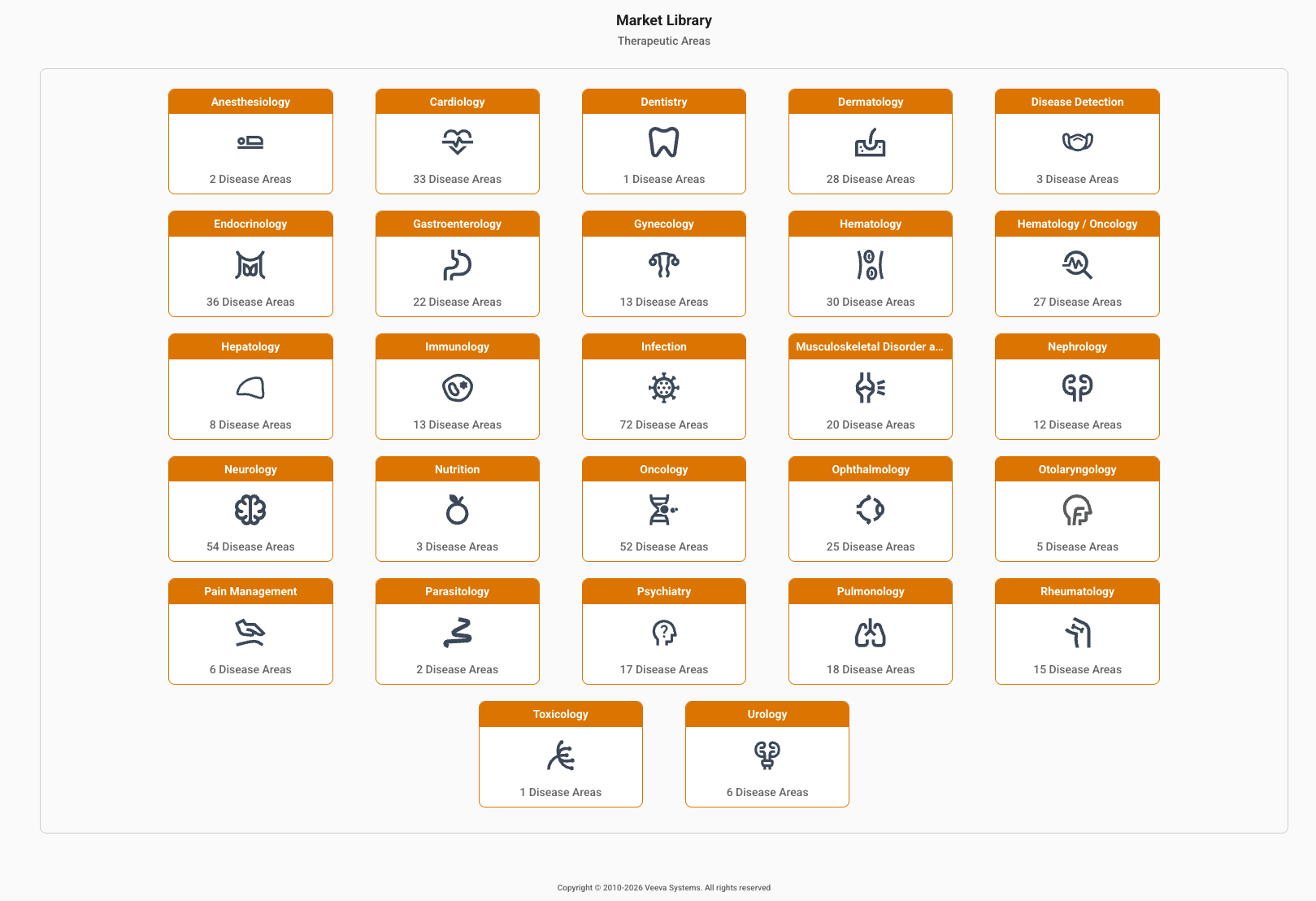
Use the right scroll bar to see additional tiles, if they exceed the page view. Click on a tile to view details of that therapeutic area.
Therapeutic Area Page
Selecting a Therapeutic Area displays all the Disease Areas that are mapped beneath it.
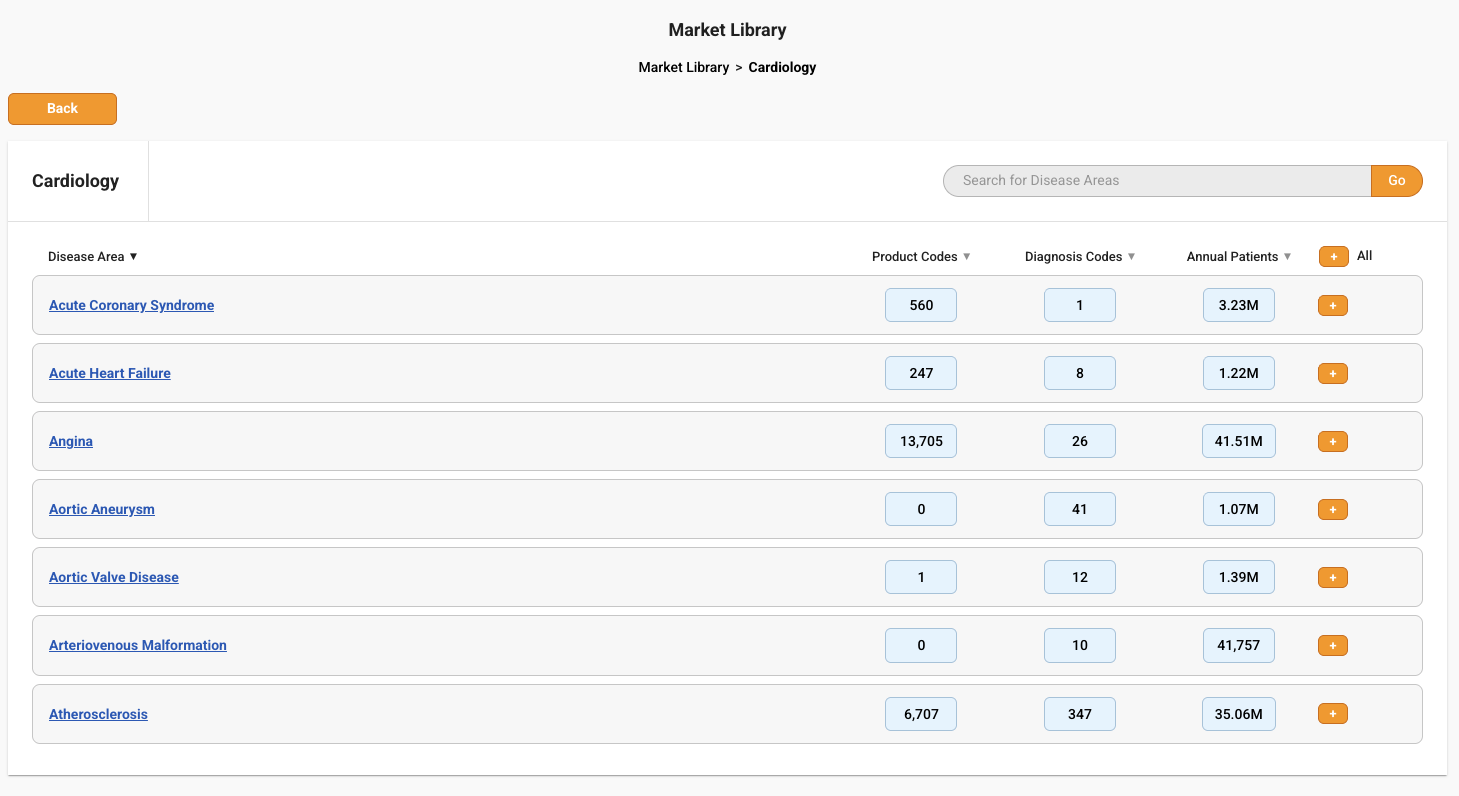
The data is organized into four columns:
- Disease Area – the name of each Disease Area that is a part of the larger therapeutic area
- Product Codes - the number of NDC and dedicated procedure codes contained in this Disease Area
- Diagnosis Codes - the number of diagnosis codes contained in this Disease Area
- Annual Patients - the distinct count of patients seen for this Disease Area over a 12-month window. (This window starts 4 months back from the last complete month to account for claims adjudication.)
To sort results on the page, click on any column header. You can also use the search bar to look for a Disease Area by name. Use the right scroll bar to view additional items if they exceed the page view.
To add codes to your market basket, use the orange add buttons on the right side of the page. An individual (+) button will add all codes in a Disease Area to your market basket.

The (+) All button will include all codes from all Disease Areas on the page.

For Patient queries, this will add related product and diagnosis codes. For Prescriber & National, this will add product codes, since these applications do not offer projections at the diagnosis code level. However, projection data in Prescriber & National still represents complete brand activity.
Click on a Disease Area name to view additional details.
Disease Area Page
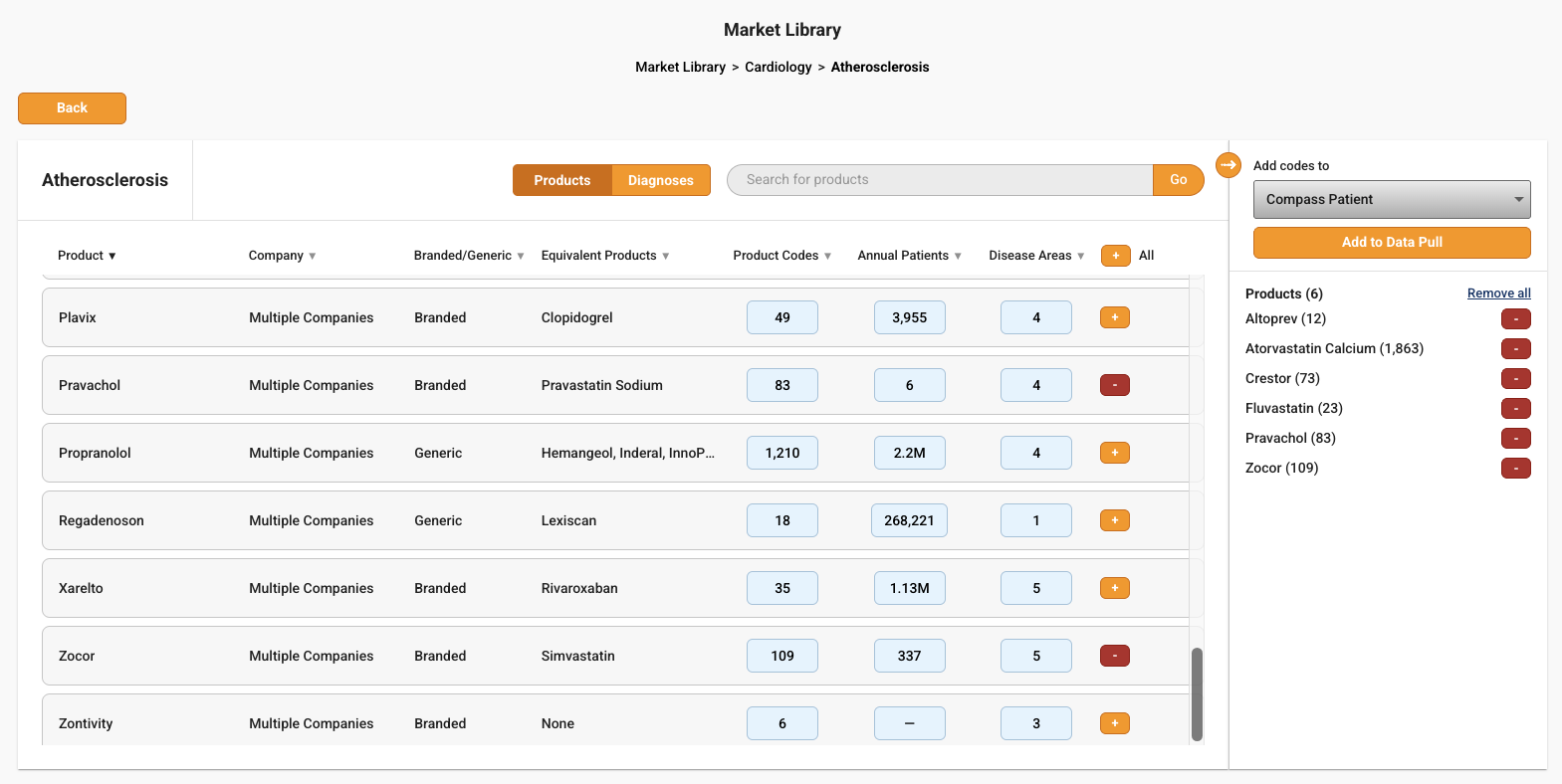
Clicking on a Disease Area name, displays all the products and diagnoses mapped to this category. Use the toggle at the top of the page to switch between product and diagnosis views.
Product View
In the Products view, data is organized into 6 columns:
- Product – name of brand
- Company – name of the company that manufactures the brand. Displayed as “Multiple” if more than one.
- Branded/Generic – name of equivalent products, if any.
- Product Codes – number of NDC and dedicated procedure codes associated with this product
- Annual Patients – the distinct count of patients for this product over a 12-month window. (This window starts 4 months back from the last complete month to account for claims adjudication.)
- Disease Areas – number of Disease Areas for a product. Note that products may be associated with multiple Disease Areas.
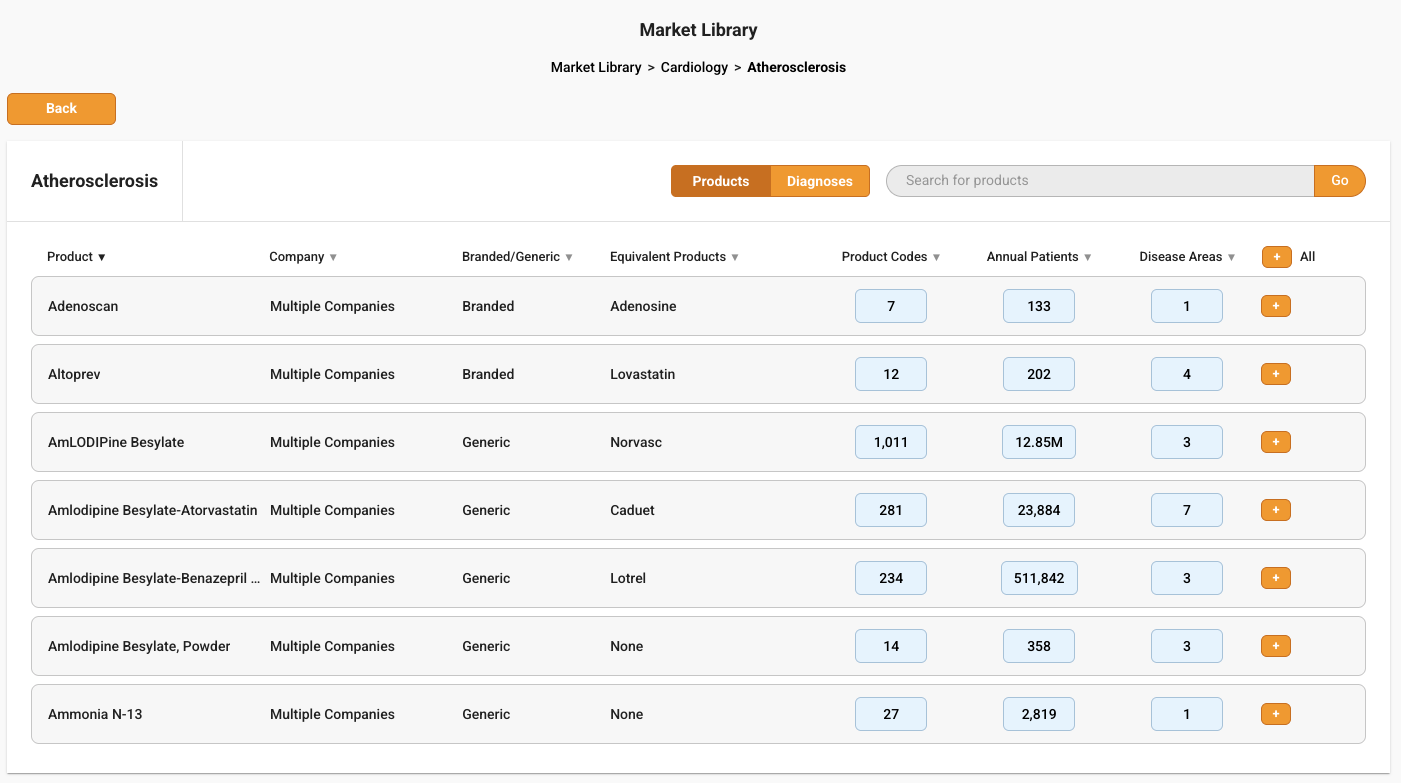
To sort results on the page, click on any column header. You can also use the search bar to look for a product by name. Use the right scroll bar to view additional items if they exceed the page view.
Use the (+) button next to a product name to add that particular product to your market basket.

Use the (+) All button to add all products from the page to your market basket.

Diagnosis View
In the Diagnosis view, data is organized into 3 columns:
- Diagnosis – 3-digit parent level code and description
- Diagnosis Codes – number of ICD-10 codes in this hierarchy that map to a given Disease Area
- Annual Patients – the distinct count of patients diagnosed with these ICD-10 codes over a 12-month window. (This window starts 4 months back from the last complete month to account for claims adjudication.)
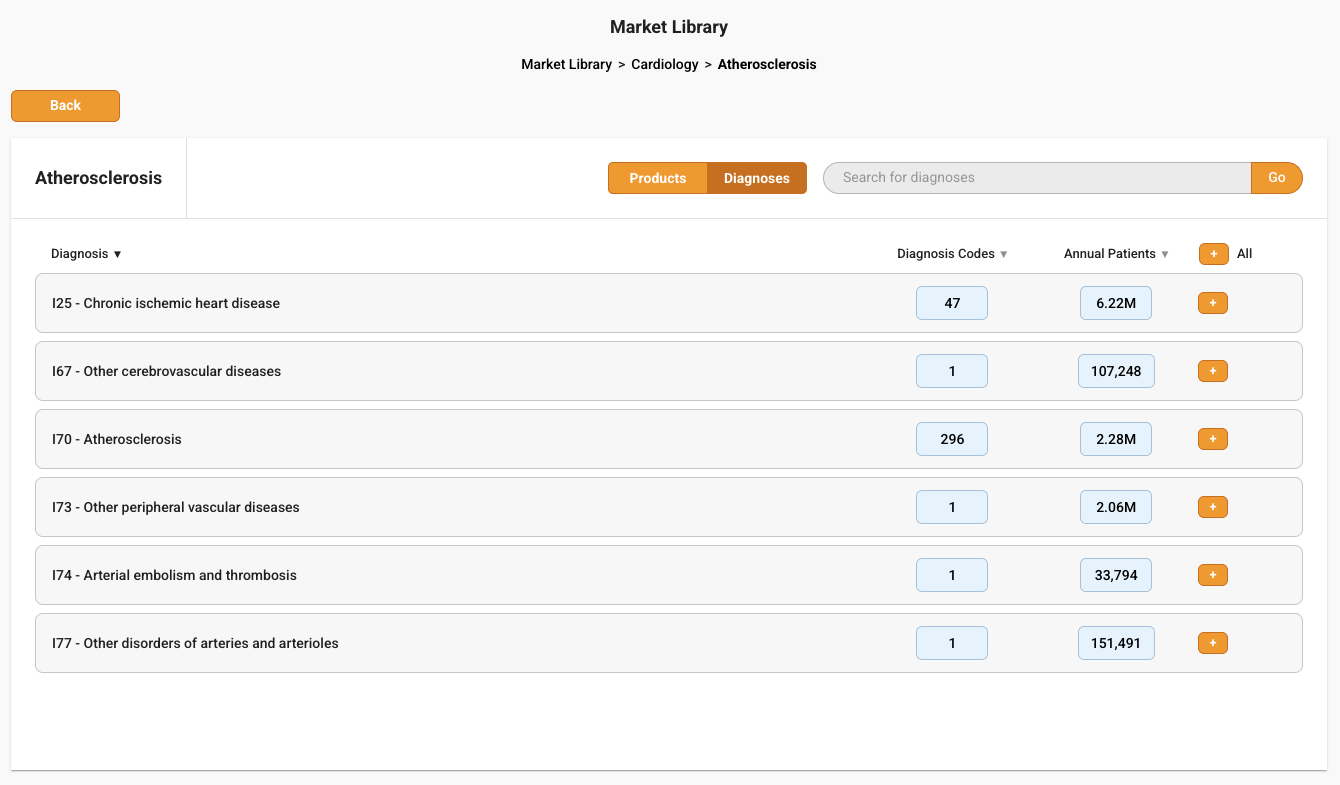
To sort results on the page, click on any column header. You can also use the search bar to look for a particular parent level diagnosis code. Use the right scroll bar to view additional items if they exceed the page view.
Use the (+) button next to a diagnosis name to add a particular diagnosis group to your market basket. This will add all diagnosis codes under the 3-digit parent that map to this Disease Area.

The (+) All button, will add all diagnosis codes in all hierarchies on the page to your market basket.

Note that these add buttons are only active for Patient queries. For Prescriber & National, diagnosis codes cannot be added directly, since these applications do not offer projections at the diagnosis code level. However, projection data in Prescriber & National data still represents complete brand activity.
Add to Market Basket
Once you click the (+) button next to any product or diagnosis, a market basket opens on the right-hand side of the page. Expand or collapse the market basket at any time using the arrow icon.
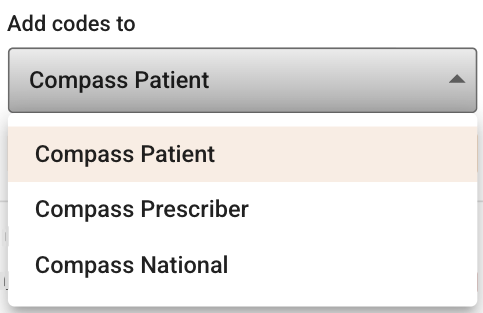
Codes can be added as query parameters to any application the user has licensed. Use the dropdown at the top of the market basket to select from available applications. If only one application is available, the dropdown will be disabled. Note that if you have added diagnosis codes for a Patient query and you switch to a Prescriber or National Query, these diagnosis codes will be disabled.
As you add codes, they will all appear in a preview in the Market Basket so you can review these codes, and click the red (-) icon to remove any you no longer want to include.
When you’re ready, click Add to Data Pull to start a query. The page will refresh to your chosen application with your chosen codes added.
From the query screen, you can run your query, use the search function to add additional codes, or save a Template to return to later.