We are excited to announce the 25R3.3 release. The new capabilities delivered include:
Compass Platform
Delivery Capability Expansion for Amazon S3
Customers will now be able to configure and test multiple Amazon S3 buckets for Compass data delivery. Each bucket will be provided with a unique name for easy identification. The delivery configuration menu for Amazon S3 has also been updated with a cleaner design to facilitate management of multiple buckets.
When setting up jobs, the customer-provided name for each bucket is now displayed in the Delivery Options selection card, enabling coordination of delivery locations between multiple teams. Users will be able to select up to three Amazon S3 buckets per job from the list of all configured buckets. Job Receipts have also been updated to include all Amazon S3 buckets to which data was delivered.
This expansion is available for all products which offer delivery to Amazon S3, including Compass Patient, Pathway, Prescriber, National, and Data Connector.
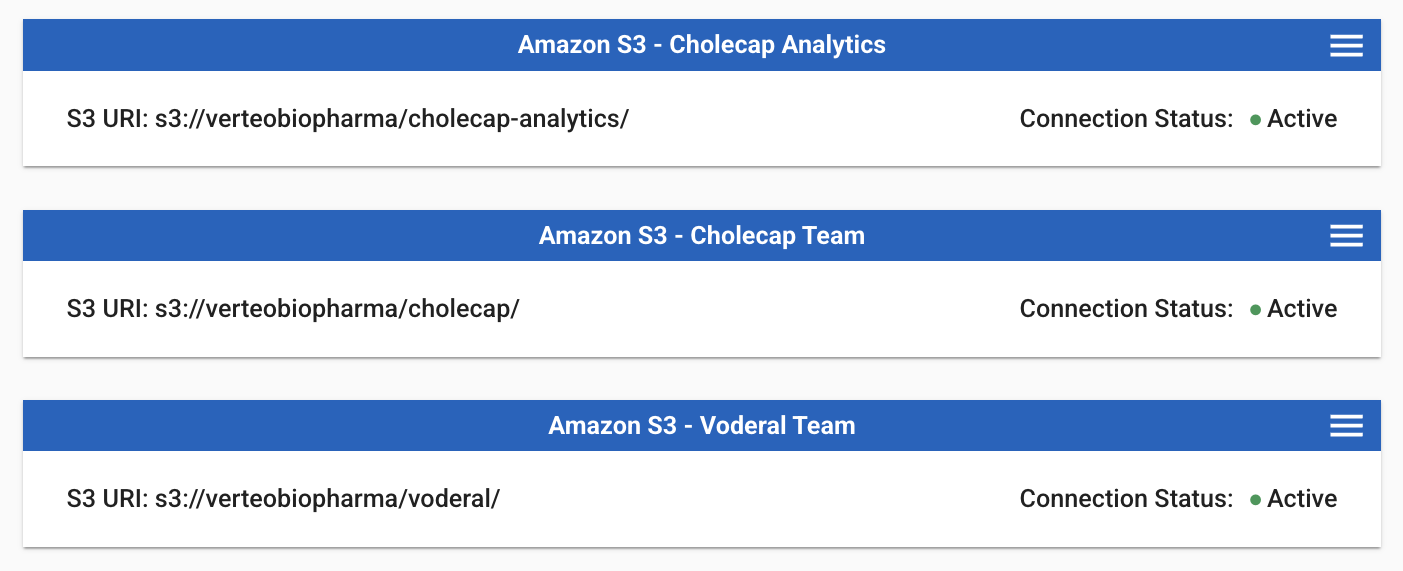
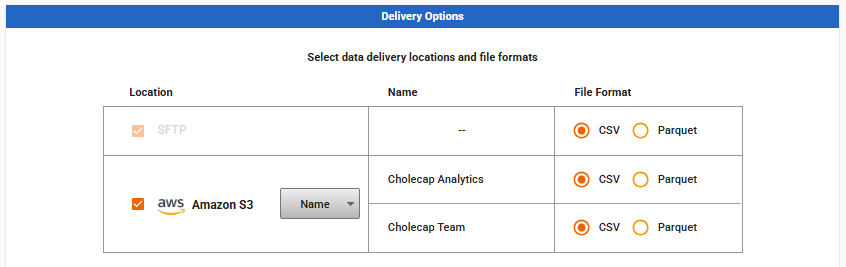
For details on setting up new Amazon S3 buckets for delivery, refer to Delivery Configuration. Details on selecting Amazon S3 buckets for individual jobs can be found on the delivery options pages for Compass Patient, Compass Prescriber, and Compass National. For Compass Data Connector, updates to Amazon S3 deliveries can be made by reaching out to a Compass Product Expert.
Add All Feature for Product and Procedure Searches
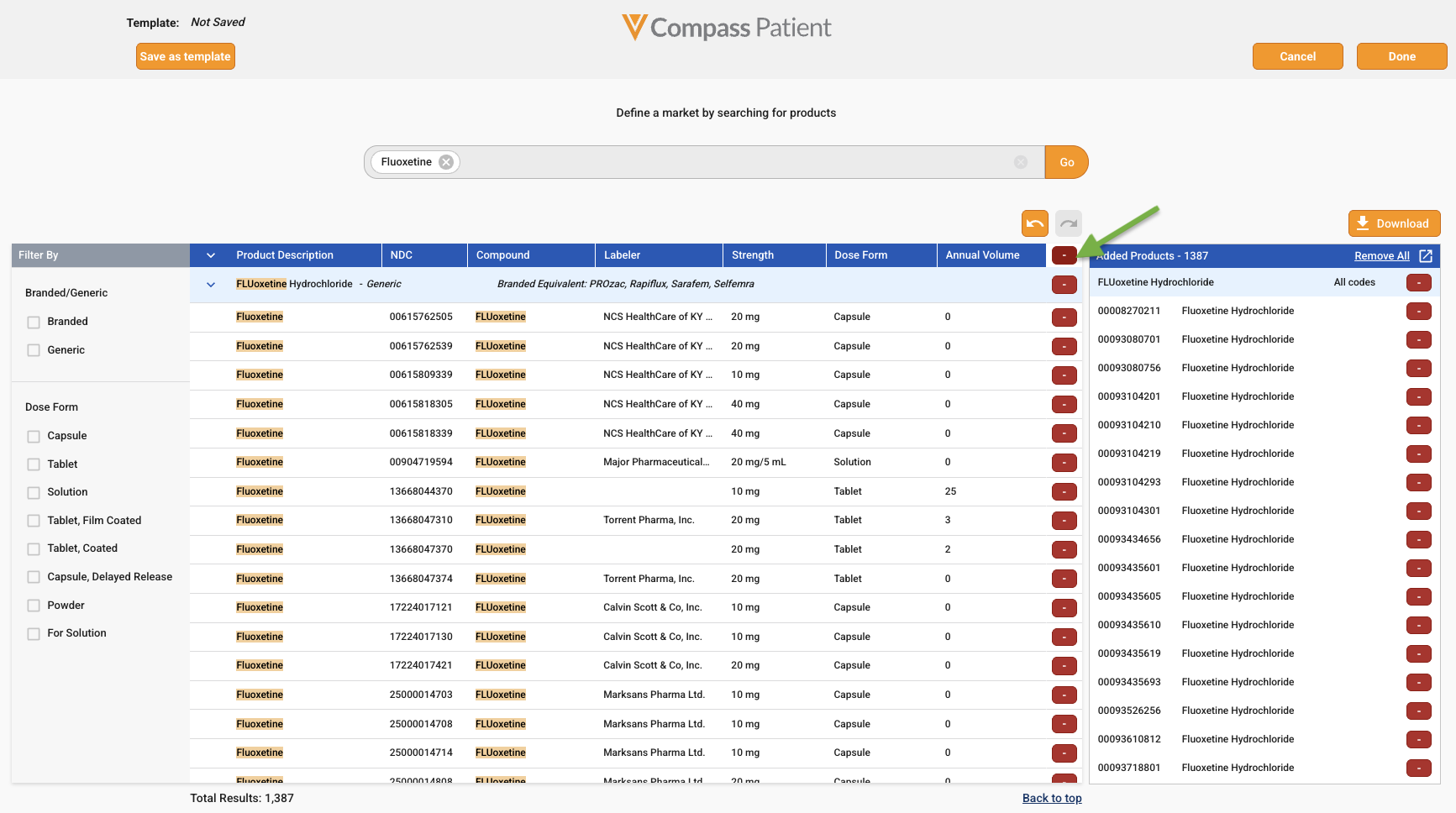
Product searches in Compass Patient and Prescriber, and Procedure searches in Compass Patient, now support adding all search results to a market basket, which reduces the need for multiple clicks.
To utilize this feature, begin a product or procedure search. Then, click the “+” button at the top of the results list. This will bulk add all items from the results list into the “Added Products/Procedures” pane on the right.
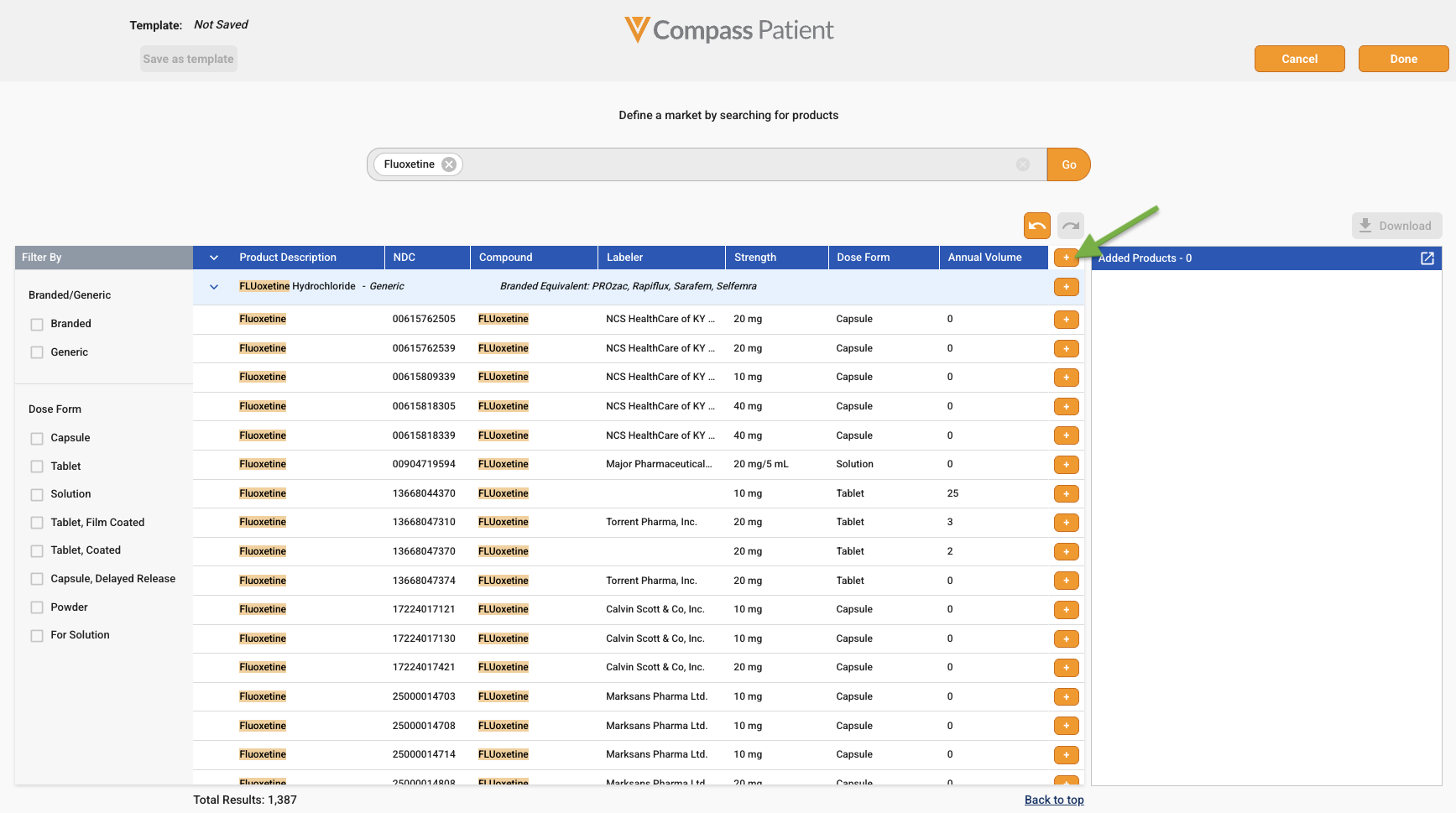
Once all codes are added, the “+” button will change to a “-” button. Clicking this button again will remove all items from the “Added Products/Procedures” list. Alternatively, to remove a particular result, click the “-” button next to an individual NDC or Name.