We are excited to share release notes for 26R1.5. The new capabilities delivered include:
Compass Platform
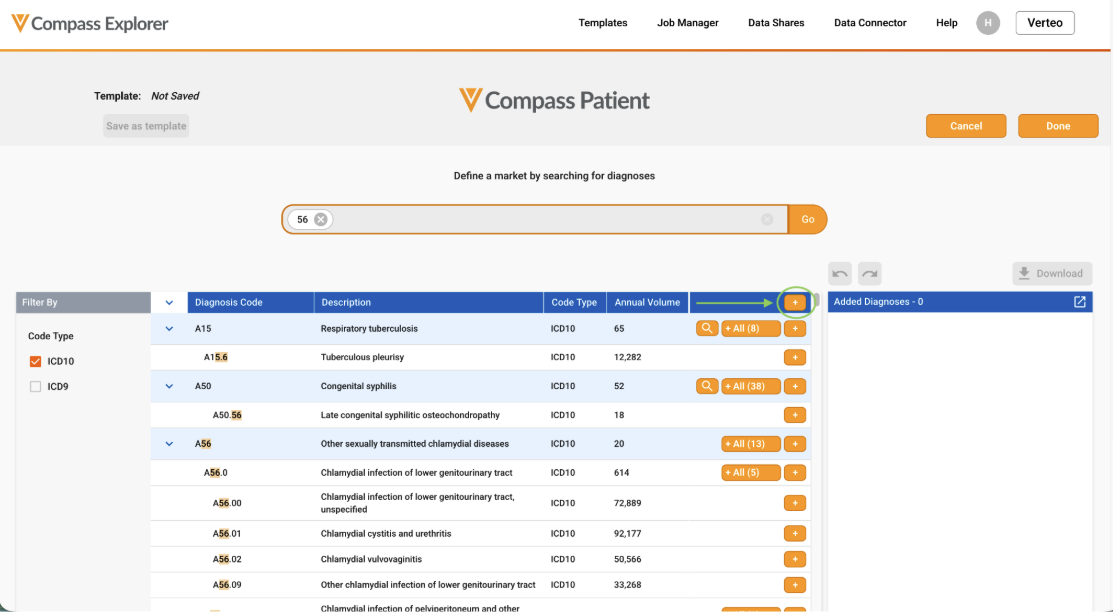
Diagnosis Add All Functionality
An Add All Button has been added to the Diagnosis Code Searcher in Compass Patient. This Add All button functions similarly to the Add All buttons in the Product and Procedure Code Searchers - clicking this button will add all search results to the Added Diagnoses Pane. Please note that utilizing this functionality will add all diagnosis codes, including child diagnosis codes that do not match the entered search criteria.
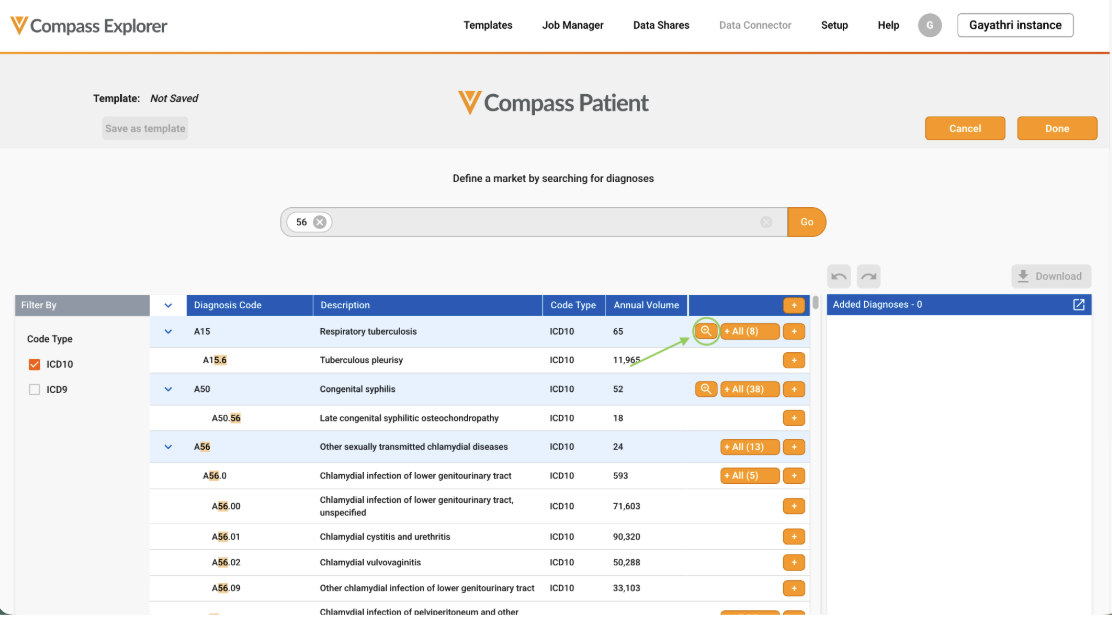
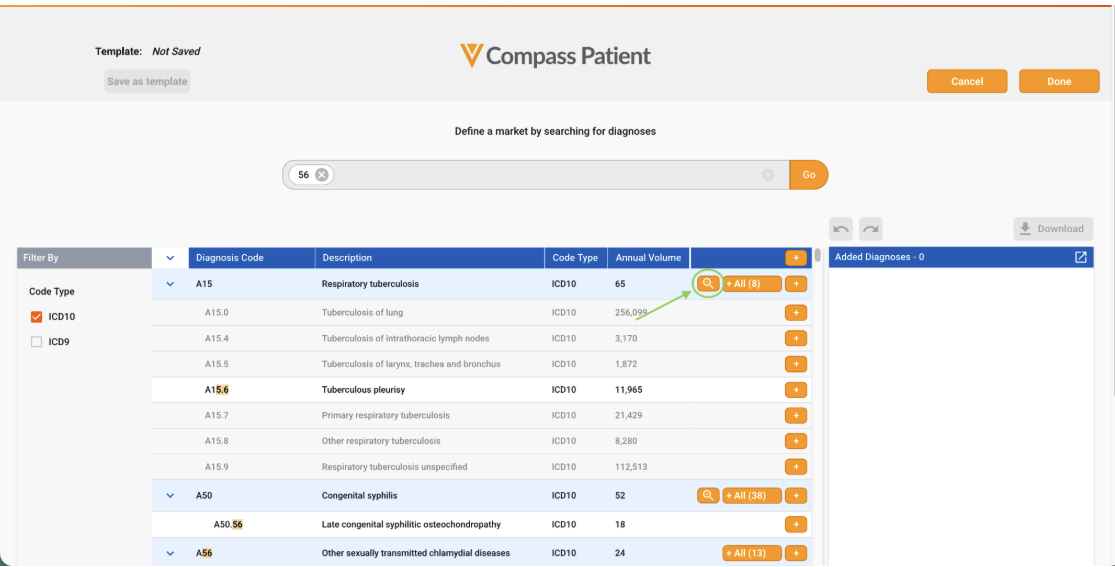
Diagnosis Search Within Hierarchy Logic
The search within hierarchy functionality has been updated to improve the user experience. Clicking on the search within hierarchy button will now display additional child diagnoses without losing the context of the user’s initial search. Child diagnoses viewed this way will have grey shading so that the user can differentiate them from child diagnoses matching the initial search results.
Please note that the “+ All” functionality remains unchanged - clicking this button will still populate all diagnoses in the hierarchy into the Added Diagnoses pane, including any child diagnoses that did not match the initial search.
Move Download Job Summary
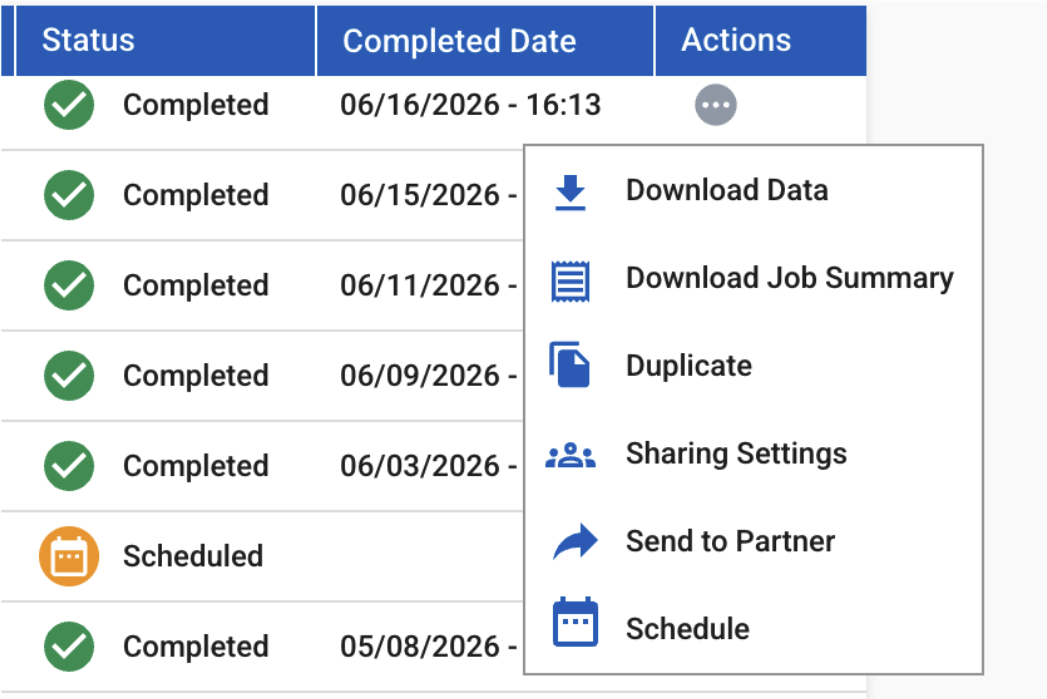
The Download Job Summary functionality has been moved from the Job Receipt Modal to the Actions Menu. There is no change to the availability of this functionality - Job Summary will still be available for Patient and Pathway One Time and Monthly Jobs.
Help Site
Multiple improvements have been made to the Compass Help Site for a better user experience. See below for a granular list of improvements.
Search Type Radio Buttons
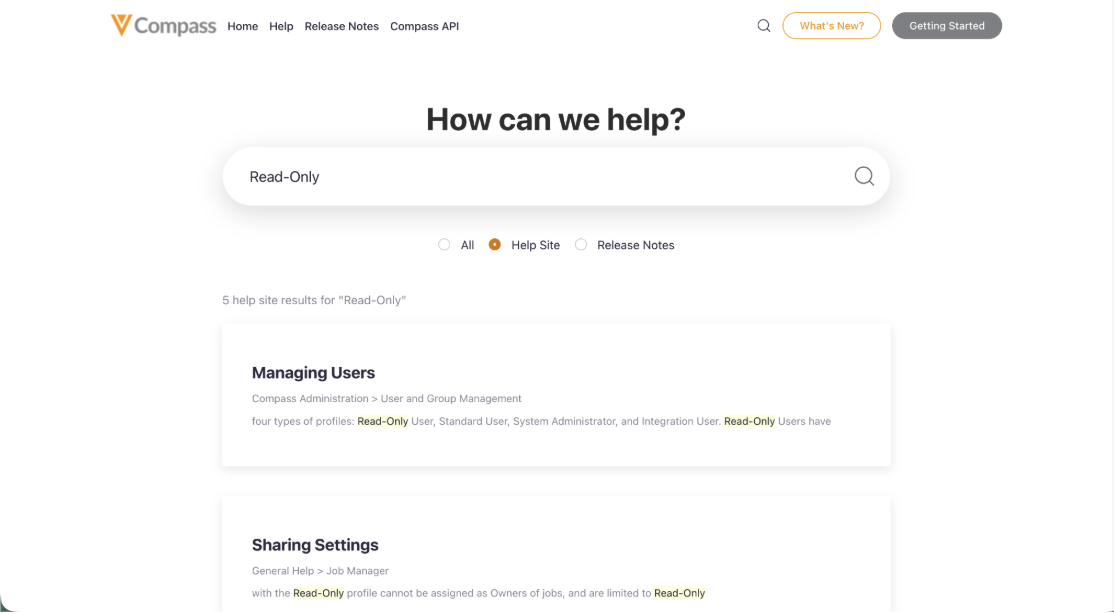
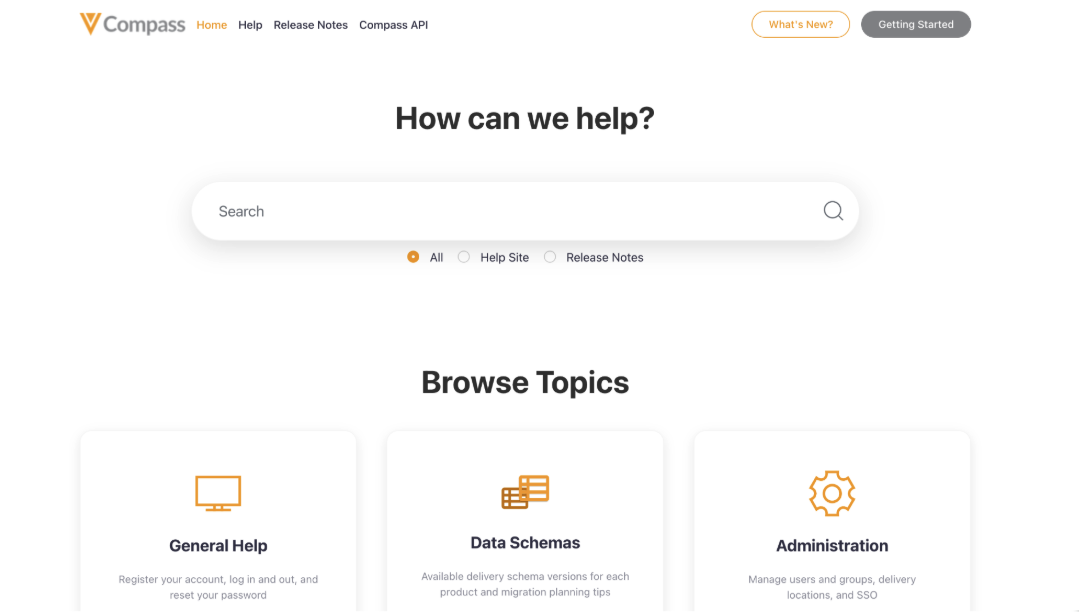
Radio buttons have been added to the Main Help Site search allowing users to specify how the search is conducted. Users can pick between searching through Help Site content, Release Note content, or All content (this is the default option).
Real-Time Search Results
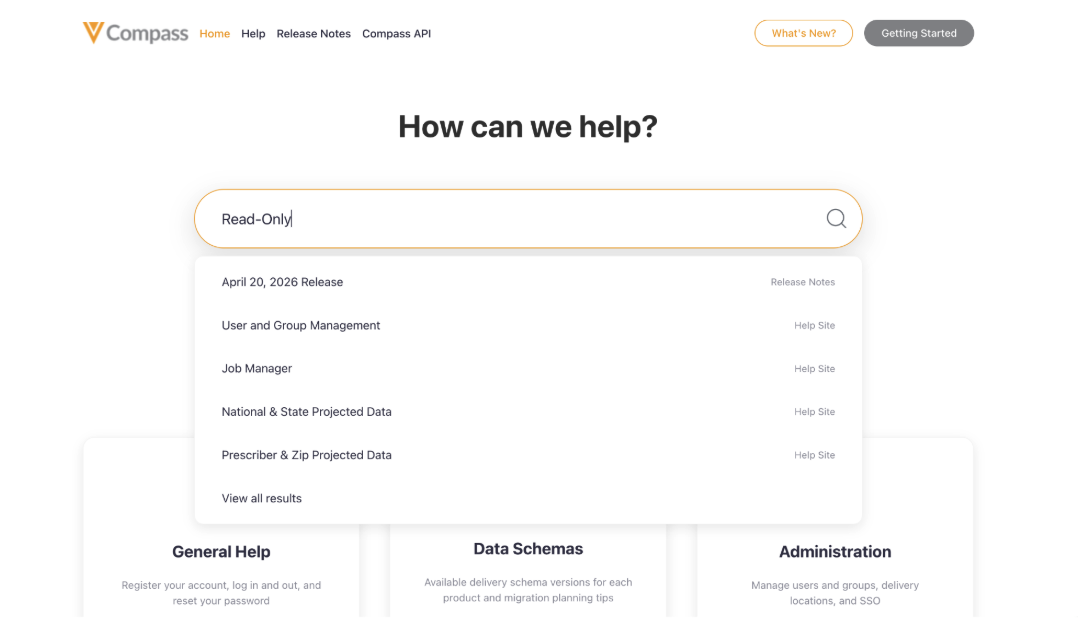
The Help Site search functionality has been refactored to display search results in real-time as the user types. Search results will begin to display once the search term is two characters long. The search bar will display up to five results, as well as a “View All Results” option. Displayed search results will include the title of the page, as well as the category of the content (Help Site or Release Note).
Breadcrumb Navigation in Search Results
Breadcrumb-style context has been added to Search Results after a user hits their “Enter” button or clicks on the “View All Results” option in the Search dropdown. These results are not clickable, but provide context regarding where the documentation is located within the Help Site.